
Fix WebGL Movement Jitter: Fish-Net TimeManager Tick Dropping and NetworkTickSmoother for Browser IO Fat Games
Browser IO and fat multiplayer games expose a timing problem that standalone builds rarely show: discrete network updates land on a frame loop that tabs throttle, WebGL dispatch slows, and URP pressure stretches. Movement that feels locked in the Editor starts hitching, rubber-banding, or stuttering once players leave the tab or the entity count climbs. That is not a cosmetic polish issue—it is a stack mismatch between how often Fish-Net ticks, how physics and prediction run, and how transforms are presented between those ticks.
Fish-Net gives you the levers. TimeManager owns tick rate—the average how often tick events fire and data may be sent or received—and physics mode so client-side prediction stays tick-aligned. Allow Tick Dropping lets clients skip excess ticks in a single frame instead of spiraling into more simulations under load. NetworkTickSmoother then interpolates transform properties between those ticks so movement, rotation, and scale read as continuous even when updates arrive in steps. Adaptive interpolation grows the buffer with local latency for a casual fat feel; Flat keeps a constant amount for competitive consistency and accurate collider rollback. Pair that with PredictionManager state queues, Detach On Start for cameras and scale-smoothed objects, and URP batching habits that keep WebGL draw-call cost down, and the same discrete network stream stops looking jittery.
This article walks that full browser-first stack: tick rate and physics mode choices, tick dropping under tab throttle, Controller vs Spectator smoother settings, Adaptive vs Flat tradeoffs, how prediction interpolation compounds graphical smoothing, and the URP practices that keep high-entity frames stable while the smoother hides the steps. The goal is a configuration you can reason about—and test in a real browser profiler—not a one-size preset.
- Set TimeManager tick rate as your send/receive and simulation frequency, then lock Physics Mode to TimeManager when using client-side prediction.
- Enable Allow Tick Dropping and Maximum Frame Ticks on clients so WebGL spikes and background tab throttle cannot spiral simulation cost.
- Put NetworkTickSmoother on graphical children (not the root NetworkObject), with separate Controller and Spectator settings.
- Use Adaptive interpolation for casual fat/IO feel; use Flat for competitive consistency and accurate collider rollback.
- Buffer PredictionManager states (at least one) and keep URP draw calls low—smoothing hides discrete ticks only if frames stay stable.
Why Editor-Smooth Movement Turns to Browser Jitter
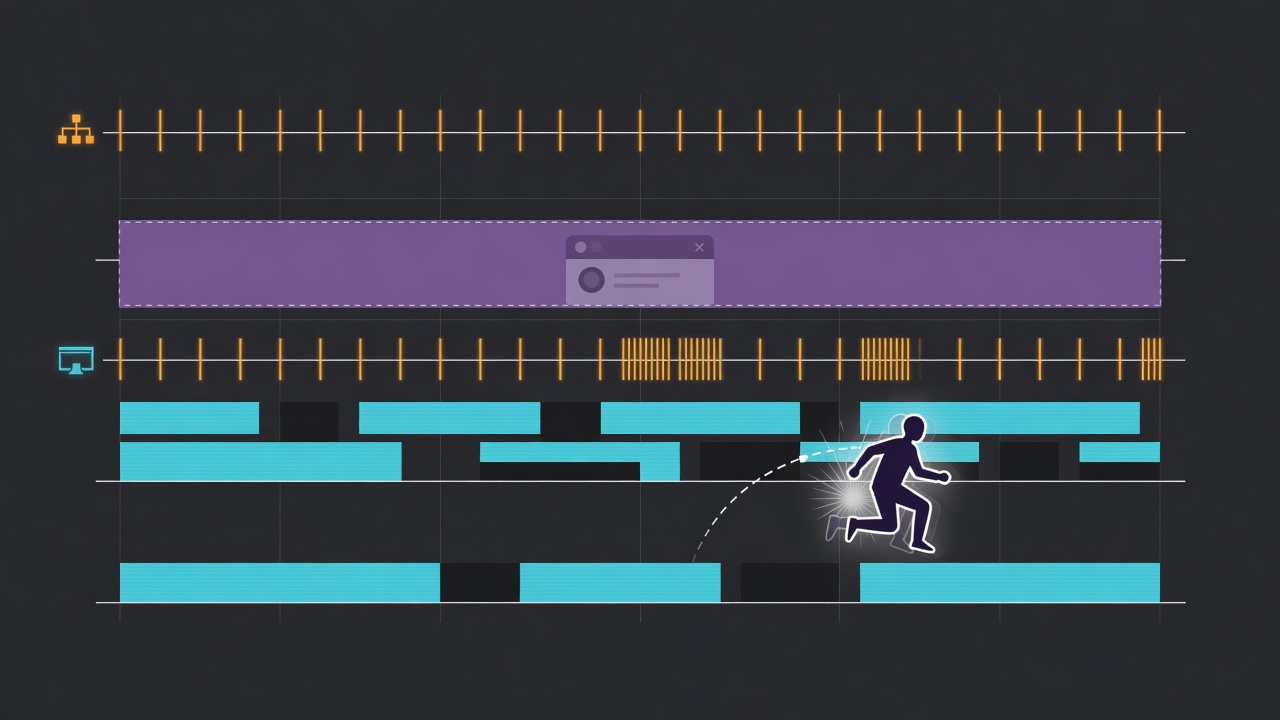
Before you reach for TimeManager or NetworkTickSmoother, you need a clear picture of why the same movement that feels continuous in the Editor turns choppy the moment it runs in Chrome or Firefox. The root cause is not a missing checkbox—it is a timing stack that WebGL and the browser treat differently from the Editor and standalone players.
Simulation cadence and render cadence are not the same thing. Fish-Net (and any tick-based netcode) advances gameplay on discrete ticks: fixed steps where input is applied, physics runs, and state is replicated. The GPU presents frames as often as the device can draw them. In the Editor those two clocks usually stay close enough that discrete network updates look continuous. In a browser they drift. When a frame takes longer than a tick—or several ticks pile up while the browser is busy—you either skip simulation, double-step it, or present the same network pose across uneven frame times. Players read that as stutter, rubber-banding, or “swimmy” motion even when your prediction math is correct.
WebGL makes the gap worse. On WebGL the CPU-side dispatch of graphics operations is slower than native OpenGL, so a high-entity IO scene that spikes draw calls mid-frame does more than drop FPS—it stretches the window in which tick catch-up has to run. A hitch that would be a brief hitch on desktop becomes visible jitter because the next few network states land on irregular frame boundaries while the CPU is still submitting batches. That is why “it was smooth in the Editor” is not a useful test for browser IO games: the Editor never pays the same dispatch tax.
Background-tab behaviour breaks another naive assumption. Most browsers throttle a hidden tab to roughly one update per second. Under default maximum delta time that also slows Time.time progression, so any system that assumed continuous wall-clock simulation—fixedUpdate habits, lerp timers driven off unscaled time without a network clock, or “just use deltaTime”—desyncs from the tick stream the moment a player alt-tabs. When they return, you get a burst of catch-up or a frozen pose that then snaps. That is not a Fish-Net bug; it is the browser rewriting your time base.
So jitter in this stack is a composition of three clocks—network ticks, render frames, and the browser’s throttle policy—amplified by WebGL’s slower graphics dispatch under fat entity counts. Fixing it means locking simulation to a deliberate tick heartbeat, allowing ticks to drop instead of spiralling when frames stall, and smoothing only the graphical children so discrete updates read as fluid motion. The next pieces walk that configuration in order, starting with TimeManager as the simulation heartbeat you actually control.
TimeManager Tick Rate: The Heartbeat You Actually Control
That deliberate tick heartbeat lives in Fish-Net’s TimeManager. Its Tick Rate is an average of how many times per second tick events fire and how often data may be sent or received—the shared cadence that keeps simulation logic and network traffic in lockstep. Everything that follows (prediction, rollback, smoothing) assumes this rate is intentional rather than whatever the browser happens to deliver on a given frame.
Real multiplayer titles already show how wide the practical range is: Apex runs at 20 Hz, Marathon at 60 Hz, CS2 at 64 Hz, and VALORANT at 128 Hz. Higher is not automatically better—each step multiplies CPU work per second and the volume of state that must cross the wire. Browser IO games almost always start lower. WebGL already spends more time on CPU-side graphics dispatch than a standalone build, and background tabs or thermal throttling can crush frame delivery. A common working band for fat or casual IO experiences is therefore 20–60 Hz, chosen so you still have headroom when entity counts climb.
Physics Mode must match the tick
If you are using client-side prediction, set Physics Mode to TimeManager. Physics then steps on the same ticks as your prediction and rollback logic instead of Unity’s variable frame timing. That alignment is what keeps the simulation deterministic; leaving it on Unity mode lets physics drift relative to network state and re-introduces the very jitter you are trying to kill.
Starting presets before you chase higher Hz
Treat the first numbers as hypotheses, not final settings. Measure frame time in a real browser build, outbound bandwidth under peak entity load, and perceived input delay on the owner before you raise the rate. Raising Tick Rate only helps when the extra simulation steps still fit inside the frame budget and the smoother still has room to hide discrete updates.
| Preset | Tick Rate | Typical fit | Watch before raising |
|---|---|---|---|
| Fat / casual IO | 20–30 Hz | High entity counts, slower movement, heavy URP scenes | Frame time spikes, draw-call cost, bandwidth under crowd |
| Responsive IO | 40–50 Hz | Medium pace, moderate prediction reliance | Owner input feel vs remote smoothness trade-off |
| Twitch / competitive feel | 50–60 Hz | Fast movement, tight hit registration | CPU headroom in WebGL, GC hitch frequency |
Once the tick rate and Physics Mode are locked, the next failure mode is what happens when a frame stalls or the tab is backgrounded. That is where tick dropping keeps the heartbeat from spiralling.
Tick Dropping: Stop Catch-Up Spirals Under Browser Throttle
When a WebGL frame stalls—or the player alt-tabs and the browser drags the tab toward roughly one update per second—TimeManager still owes the ticks that should have fired. Several can land in the next slow frame at once. Without a guard, the client tries to honour every missed step back-to-back: physics, prediction, and reconciliation all run in a burst on a CPU that was already struggling with draw-call dispatch. Each extra sim steals more frame time, the following frame arrives even later, and hitching cascades into unplayable simulation debt. That spiral is the failure mode tick dropping exists to cut short.
On clients, enable Allow Tick Dropping so Fish-Net can skip ticks when several occur over a single frame instead of forcing full catch-up. As the TimeManager documentation puts it, this “will let the client skip ticks when they occur several times over a single frame” and is useful specifically “to prevent the client from running an increasing number of simulations per frame, resulting in more performance loss.” Tune Maximum Frame Ticks beside it so a spike or a tab return cannot dump an unbounded batch of sims onto one frame. For fat browser IO builds, start conservative—low enough that a long hitch cannot re-create the spiral—then raise only after you have measured real hitch length in the browser Profiler, not the Editor.
Keep server and client posture distinct. Servers should generally keep every tick so authoritative state stays dense and fair for all players. Clients in IO and other fat browser builds are the ones that need the escape hatch: protect frame time first. Skipped client ticks are not free—local prediction and input reconciliation see slightly coarser steps, and a brief visual hitch can still show through until the graphical smoother (next) covers the gap—but that cost is far smaller than a multi-second freeze when the tab wakes. Configure dropping as a browser survival tool tied to the throttle and hitch diagnosis already covered, not as a generic default flipped on every platform.
NetworkTickSmoother: Graphical Fluidity Without Touching Simulation
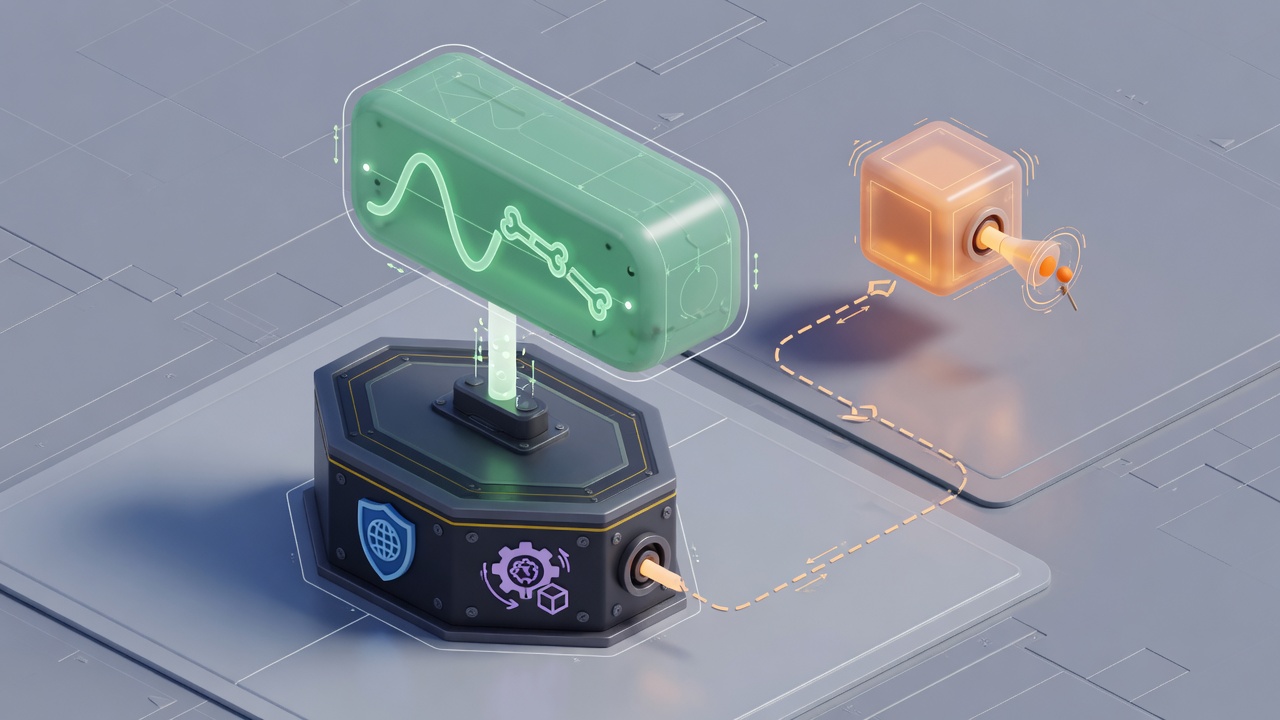
That graphical smoother is NetworkTickSmoother—and it exists specifically to cover the visual gap left when ticks are discrete, dropped, or simply spaced farther apart than the browser’s render loop.
NetworkTickSmoother’s job is narrow and intentional: it interpolates an object’s transformation properties between network ticks so movement, rotation, and scale read as continuous motion even though the underlying updates arrive in steps. It does not advance simulation, reconcile inputs, or invent missing physics frames. It only makes the path between authoritative poses look fluid to the eye.
Attach the component to graphical child objects under the NetworkObject—meshes, springs, cosmetic pivots—not to the networked root itself. Keeping the root authoritative and tick-aligned preserves prediction, rollback, and collider fidelity. The child can ease between poses while the root stays honest about where the simulation actually is. That separation is what lets you smooth fat/IO crowds without fighting client-side prediction or corrupting state you will later reconcile.
Split Controller (owner) and Spectator settings deliberately. Owners want snappier local response so their own character does not feel laggy under prediction; spectators in a crowded field benefit from heavier smoothing so remote bodies glide instead of stepping. In browser IO games that asymmetry matters: you feel your own ship or blob immediately, while dozens of remote entities stay readable without telegraphing every discrete tick.
Do not treat the smoother as a substitute for correct tick rate, Physics Mode = TimeManager, or client-side tick dropping. It masks cadence; it does not fix misaligned simulation. If the root is still running on Unity’s frame clock, or catch-up spirals are still chewing the main thread, prettier interpolation only hides the symptom until the next hitch. Get the timing stack right first—then let NetworkTickSmoother finish the presentation layer so discrete network updates stay fluid on screen.
Adaptive vs Flat: Buttery Casual Motion or Competitive Consistency
With the smoother on graphical children and the timing stack locked, the last interpolator choice is how it buffers remote motion: Adaptive or Flat. That single setting decides whether remote players feel continuous under messy home networks or stay locked to a fixed delay for competitive hit registration.
Adaptive Interpolation raises its buffer as local latency climbs. When it is not disabled, the interpolation amount grows with the client’s ping, which is exactly what casual fat and arena IO titles want. Browser players sit on uneven home connections; the extra cushion keeps remote motion looking continuous through spikes instead of popping between discrete ticks. Prefer Adaptive defaults when the fantasy is social growth, crowded arenas, and “buttery” spectators rather than frame-perfect duels.
Flat holds a constant interpolation amount no matter what latency does. That consistency is why competitive and reaction-based games lean on it, and it is required when accurate collider rollback matters. If your skill-based IO combat uses lag compensation and predicted collisions, Flat plus a buffer you measured under real browser ping is the correct path—Adaptive’s moving target would undermine the rollback surface you just protected with TimeManager and tick dropping.
Decision path
- Social growth / arena fat games → Adaptive defaults for remote motion under variable home networks.
- Skill-based IO combat with lag compensation → Flat with a measured constant buffer so collider rollback stays trustworthy.
Either way, keep Controller and Spectator settings separate. Adaptive can over-buffer on the owning client and make local movement feel floaty if the same aggressive spectator values bleed onto the controller path. Owner settings stay snappy; spectator Adaptive (or a tuned Flat) soaks the network mess. Once that split is clean, the next layer is detach behaviour for cameras and scale-smoothed objects so parenting and rollback do not fight the smoother you just configured.
Detach Cameras and Budget the Prediction Queue
That next layer is small on paper and expensive when you skip it. Put Detach On Start (and its pair, Attach On Stop) on any NetworkTickSmoother that drives a camera target or a scale-smoothed prop. When Detach On Start is true, the smoother unparents its object and places it as a root in world space for the session; Attach On Stop reparents it when the smoother stops. Detach is the usual path for camera targets because a parented camera follower inherits the NetworkObject’s hierarchy and Unity’s lossy-scale path—both of which fight graphical interpolation and can corrupt rollback when prediction rewinds the root. Unparented, the smoother owns world pose only; the simulated root stays clean for prediction, colliders, and ownership.
PredictionManager’s state interpolation sits one layer below that graphical pass. Most games should queue at least one prediction state so latency has a buffer before spectated states run. Each unit you add delays those spectated states by roughly one TickDelta—so two interpolation is two ticks of extra visual lag on remotes, three is three, and so on. Owner-predicted motion is not the same path; the cost shows up on spectators and on any view that consumes interpolated states rather than local prediction.
How the two interpolators stack
Prediction-state interpolation and NetworkTickSmoother graphical interpolation are additive in feel. The first delays when a networked state is considered “current” for spectators; the second then lerps the graphical child between those already-delayed ticks. Stack a fat Adaptive spectator buffer on top of three or four prediction interpolations and a 30 Hz tick, and browser IO motion turns molasses—especially under tab throttle or a hitchy URP frame. Budget both: keep prediction interpolation modest (start at 1, raise only when you measure real latency spikes), then let spectator Adaptive or a measured Flat absorb the rest on the graphical child. Controller stays lean so the owner never inherits that remote padding.
For a high-entity WebGL fat or arena build, a minimal safe combo is: prediction interpolation at 1 (maybe 2 if your pings are ugly), spectator Adaptive for casual butter or Flat with a short measured buffer for skill-based lag comp, Controller snappy and unbuffered, and every camera target or scale-smoothed follower running Detach On Start so parenting never reintroduces jitter the smoother just removed. That keeps discrete network ticks fluid on screen without bloating the simulation path or the rollback window.
The Shared Tick Budget That Protects URP WebGL Frame Time
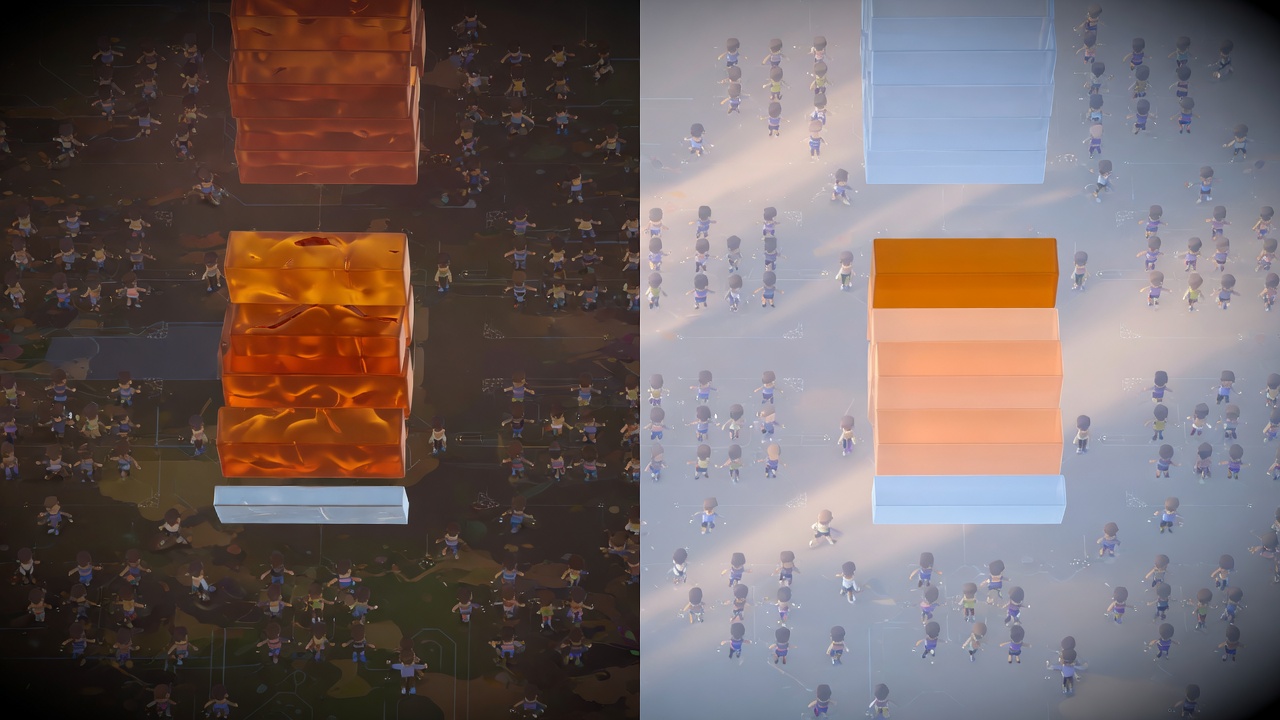
That stack keeps prediction and graphical smoothing honest—but only if the frame itself still has time left for URP to draw. Frame smoothness is a shared budget: every forced multi-tick catch-up steals CPU from the render path on WebGL’s already-slow dispatch. When the browser is hitching, burning those cycles on catch-up simulation leaves URP with less headroom, so draw-call spikes turn into visible stutter even after NetworkTickSmoother has done its job.
Prefer URP for web scaling. Unity recommends it because it customises and scales content efficiently across hardware; enable the SRP Batcher so draws group by material properties and CPU rendering stays lean. Cut draw-call counts aggressively—merge meshes where you can, atlas materials, cull aggressively—so the smoother is not papering over a render bottleneck. URP generally outperforms alternatives in WebGL builds; avoid GPU Instancing on materials, because different browsers surface different issues. Favour batching strategies that stay stable across Chrome and Firefox instead of chasing GPU-side tricks that fracture under real browser variance.
Close the loop in a real browser
Editor play mode will not show you tab throttle, WebGL GC pauses, or multi-client crowd cost. Validate the full stack—TimeManager tick rate and dropping, Physics Mode = TimeManager, NetworkTickSmoother on graphical children, Adaptive vs Flat choices, detached camera targets, and a modest prediction interpolation queue—inside actual browser builds.
- Throttle CPU in DevTools and confirm Maximum Frame Ticks drops excess work instead of spiralling catch-up
- Background the tab, return after several seconds, and verify simulation resumes without a hitch cascade
- Spin multiple fat clients in a crowded scene and watch frame time stay inside URP budget while remote motion stays fluid
- Profile draw calls and SRP Batcher batches; if smoothing looks fine but frames still hitch, fix the render path first
Lock simulation to ticks, drop under throttle, smooth only the graphics, detach what rollback cannot parent cleanly, and keep URP’s batching disciplined. Do that, and browser IO movement stays readable under load instead of turning every hitch into jitter.
Key Takeaways
Lock your next Fish-Net WebGL IO build to TimeManager ticks, drop under browser throttle, smooth only the graphical children, and ship movement that stays fluid when Chrome fights back.
Frequently Asked Questions
You Might Also Like
- Fish-Net Multiplayer Fish-Net NetworkTransform and Rigidbody Synchronization for Smooth Multiplayer Physics in Unity IO Games
- Fish-Net Multiplayer Advanced Client-Side Prediction with Fish-Networking in Unity
- Fish-Net Multiplayer Fish-Net Bayou WebGL Transport for Seamless Multiplayer Browser IO and Fat Games in Unity
- Fish-Net Multiplayer Fish-Net NetworkAnimator Synchronization for Smooth Multiplayer Character Animations in Unity IO and Fat Games
- Fish-Net Multiplayer Mass-Aware Interest Management for Browser Fat Games with Fish-Net and URP