Lighting Optimization in Unity URP
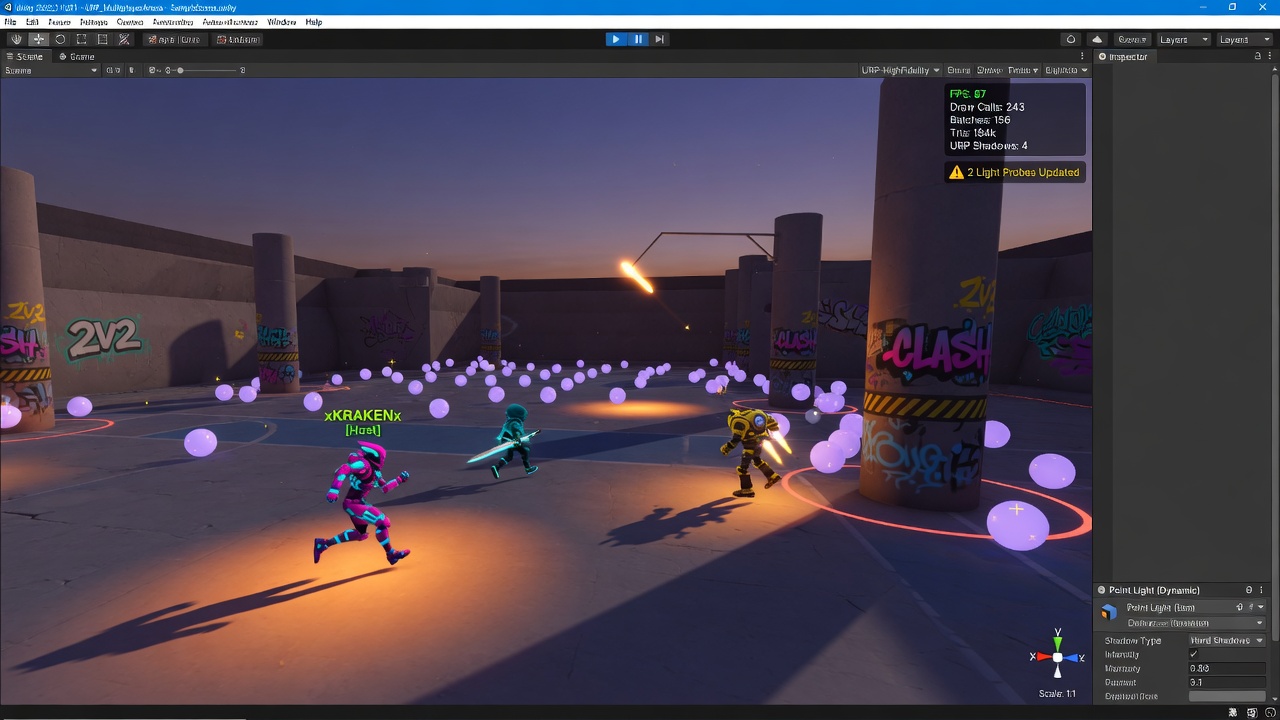
Every game developer wants beautiful, immersive worlds, but dynamic lighting can quickly drag your frame rates down into the single digits, especially in demanding multiplayer environments. In Unity's Universal Render Pipeline (URP), finding the sweet spot between stunning visuals and smooth performance is one of the most critical optimization challenges you will face. When every millisecond on the CPU and GPU counts, default lighting settings simply will not cut it.
To keep your game running smoothly across target devices, you need to understand where your rendering budget is going. By shifting static geometry to baked lighting and aggressively managing your shadow rendering—such as by reducing the Main Light shadow resolution and lowering the Additional Lights shadow atlas resolution—you can dramatically reclaim lost performance without sacrificing your game's atmosphere.
In this guide, we will break down the exact settings, workflows, and best practices needed to master URP lighting optimization. Let us start by looking at the fundamental choice that shapes your entire rendering pipeline: choosing between real-time and baked lighting.
- Baked lighting is significantly cheaper to render than dynamic real-time lighting.
- Disabling shadows on additional lights and lowering shadow atlas resolutions drastically reduces GPU overhead.
- Light probes offer an efficient way to illuminate dynamic objects within baked environments.
- Optimizing URP asset settings is essential for maintaining high frame rates in multiplayer games.
Stop Calculating, Start Baking: Optimizing Static Geometry
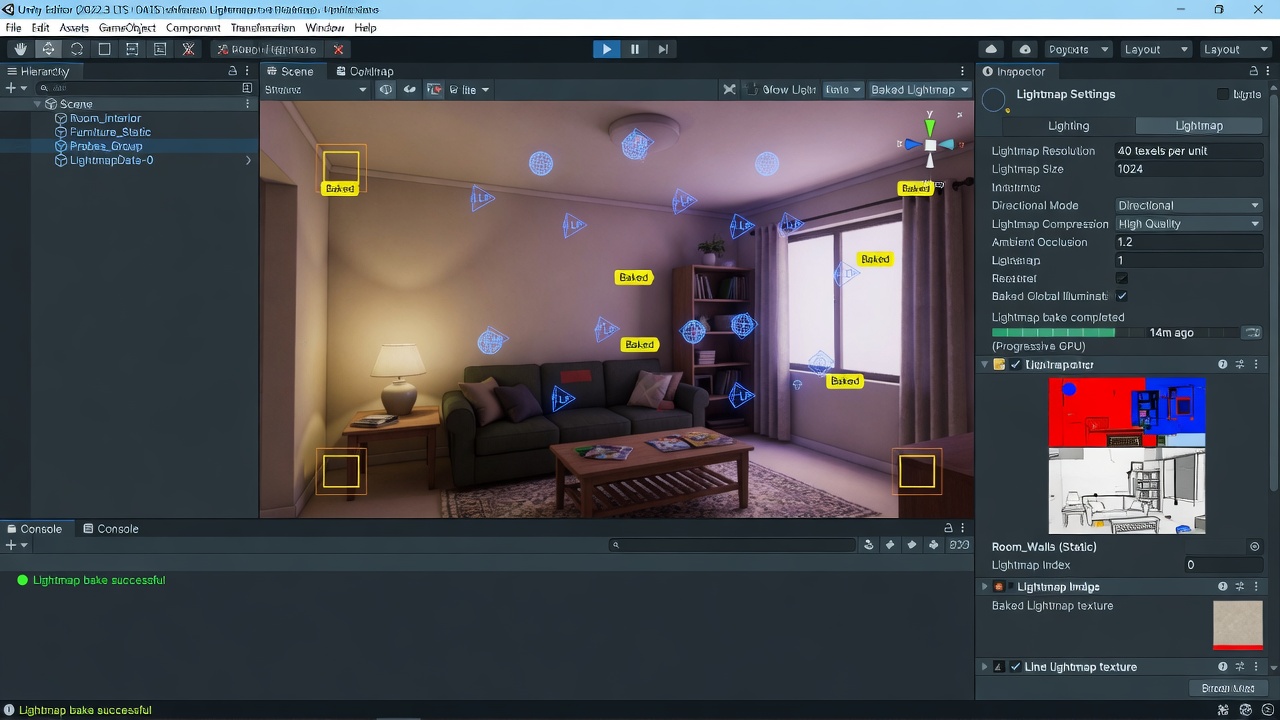
This choice is the single most impactful decision you will make for your game's performance. Every object in your scene that does not move—such as walls, terrain, and structural assets—should be marked as static. By doing this, you instruct Unity to precompute all light bounces, ambient occlusion, and soft shadows during build time, saving them directly into lightmap textures. Instead of burning precious GPU cycles calculating complex light math every single frame, your hardware simply samples a 2D texture.
Of course, a static world needs dynamic elements like players and enemies to feel alive. Rather than introducing expensive real-time lights to illuminate these moving assets, you can bridge the gap using Light Probes. Light Probes capture the baked light passing through empty space and project it onto moving objects as they traverse the scene. This gives you the illusion of complex, unified lighting at a fraction of the performance cost.
However, even with a heavily baked scene, you will occasionally need real-time sources for dynamic effects. Knowing how to handle these extra sources is where your next optimization wins lie.
Keep Your Shadows Lean: Optimizing Additional Lights
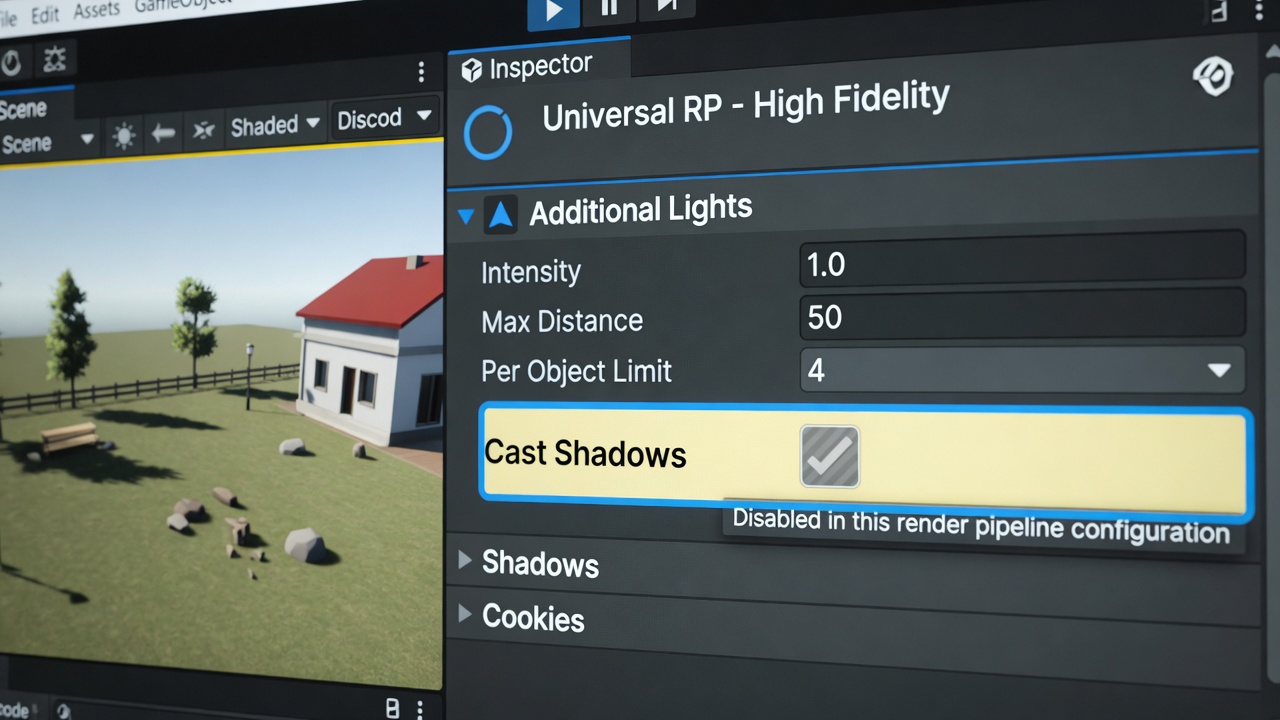
When you absolutely must use real-time lights, you have to be ruthless with their settings. Every additional real-time light in URP is a potential performance killer, particularly when it comes to rendering shadows. To keep your frame rates high, your main directional light should be the only source allowed to cast real-time shadows in most scenarios.
Quick Wins for Additional Lights
- Disable additional shadows: Under your URP Asset settings, disabling shadows on extra lights is one of the fastest ways to reclaim GPU performance. Simply toggle Additional Lights > Cast Shadows to Disable.
- Shift to per-vertex lighting: For secondary lights that don't require pixel-perfect accuracy, configure them to use per-vertex mode in Forward rendering. This moves the calculation burden from the pixel shader to the vertex shader, which is significantly cheaper.
- Rely on Light Probes: Instead of dotting your scene with real-time point lights to illuminate moving objects, let Light Probes do the work. They provide realistic ambient and direct light simulation without the per-frame overhead of active light sources.
But what if your game's design absolutely demands real-time shadows on more than just your primary light? If you cannot avoid extra shadow-casting lights, your next line of defense is tightly controlling how those shadows are rendered.
Squeezing Performance from Shadows: Resolution and Atlas Tuning
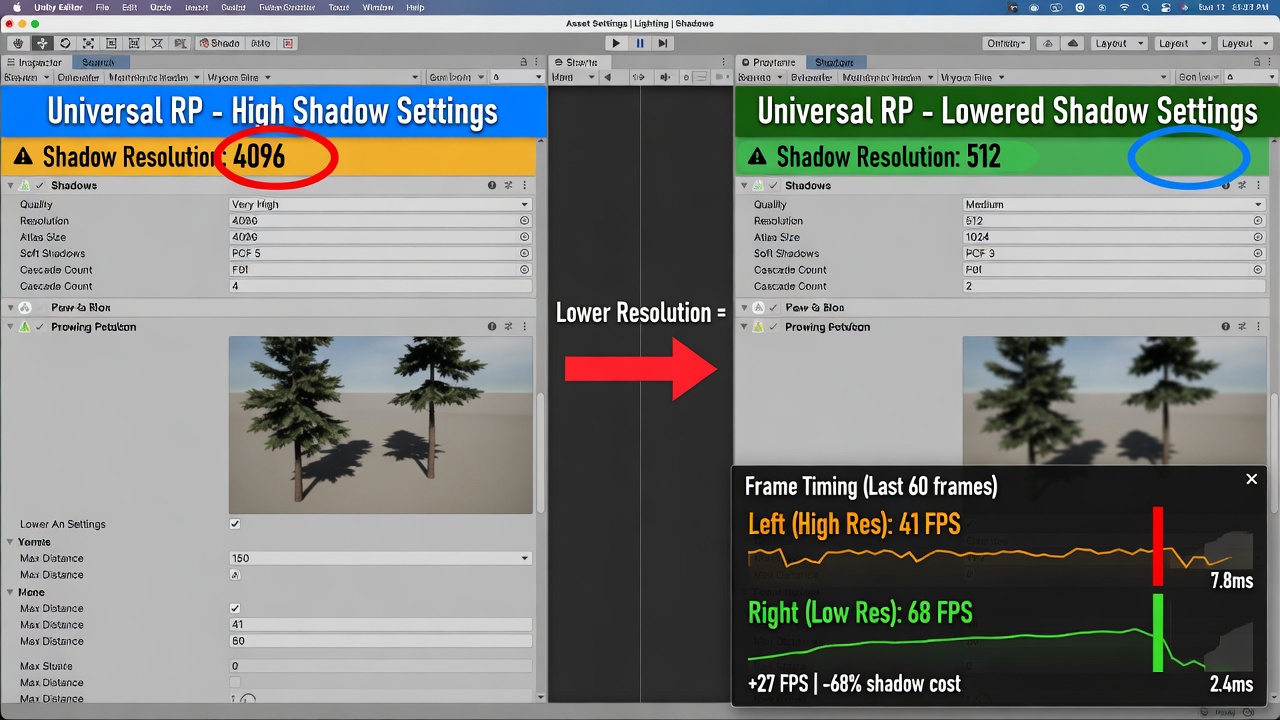
That defense begins directly within your URP Asset settings, where shadow resolution dictates exactly how hard your hardware has to work. Real-time shadows are notorious performance killers, but you can claw back significant frame time by aggressively managing your shadow maps.
Start by lowering the Main Light Shadow Resolution. While a 4096px shadow map looks crisp, it heavily taxes both your GPU bandwidth and VRAM. Dropping this to 2048px or even 1024px often yields a massive performance boost with negligible visual loss on typical player screens. Next, tackle your Additional Lights Shadow Atlas Resolution. In URP, all additional real-time shadow-casting lights are packed into a single texture atlas. If this atlas is set too high, your rendering pipeline will choke. Reducing this atlas resolution ensures your secondary lights don't drag down your frame rate.
Of course, you shouldn't tune these settings blindly. Always profile your game using Unity's Profile Analyzer and Frame Debugger to test the direct impact of these adjustments on your CPU and GPU load. Look for reductions in draw calls and GPU render times. Finding that sweet spot between sharp edges and smooth frame rates is key to a polished player experience.
But what if your project isn't a 3D environment at all? If you are building a flat, stylized world, the rules of lighting change entirely.
Going Flat: High-Performance 2D Lighting in URP
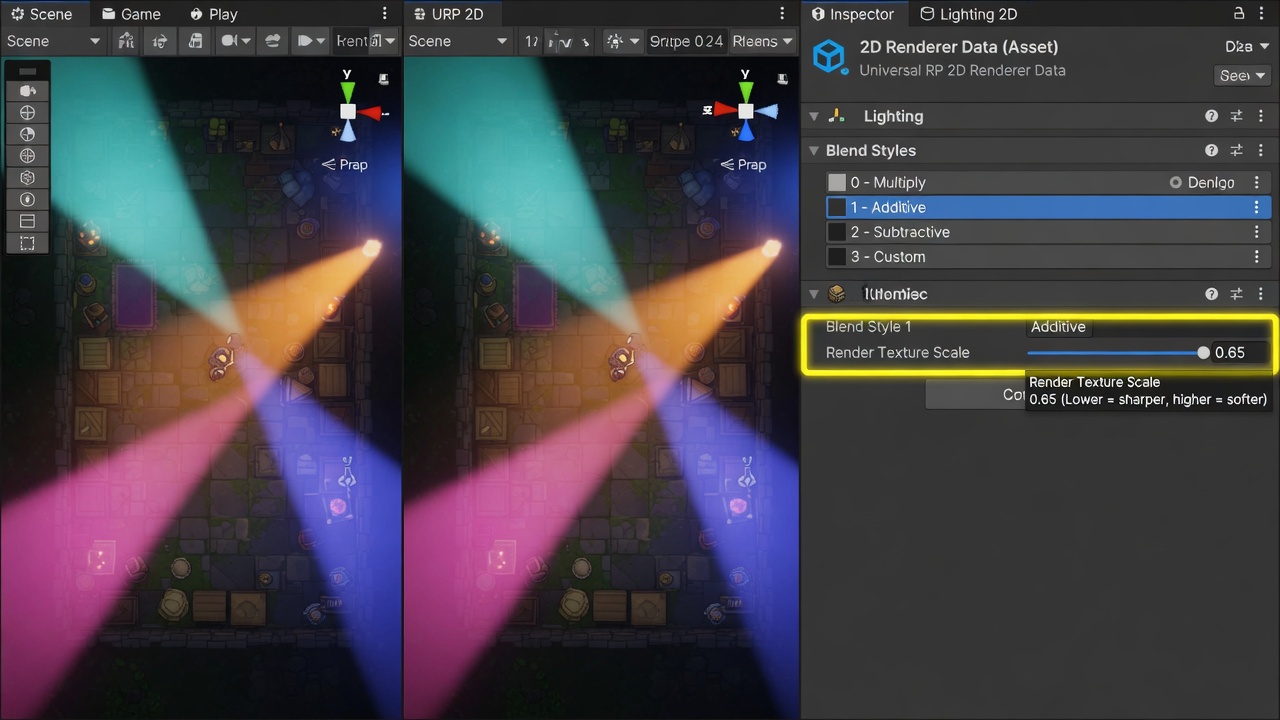
When you transition to 2D, URP's 2D Lighting system takes over, introducing its own unique set of performance bottlenecks. The most common culprit is the abuse of Blend Styles. Every active Blend Style you define in your 2D Renderer Asset requires an additional render pass. To keep performance high, you should use as few Blend Styles as possible.
If you must use multiple styles, you can claw back performance by reducing the render texture scale of your Blend Styles. This lowers the resolution of the lighting buffer and eases the GPU's fill-rate burden.
Streamlining 2D Shadow Casters
Just like in 3D, 2D shadows are expensive. Each ShadowCaster2D component adds to the CPU overhead. Instead of attaching a caster to every individual prop, combine your static colliders using a CompositeCollider2D or manually place simplified, single-shape shadow casters over groups of background objects.
By keeping your blend styles lean, scaling down your render textures, and merging shadow geometry, you can deliver crisp, atmospheric 2D worlds that run beautifully on any hardware.
Key Takeaways
Check out our range of Unity URP optimization tools at bigfatgames.com to streamline your game's performance even further.